
THE BACHGROUND FIELD GUIDE 01
How to Score
a Video with AI
Start with the picture. Find its musical direction. Make the score your own.
BachGround creates music informed by your uploaded footage and an optional brief. This guide takes you from a video file to a soundtrack you can review, refine and export in Video Composer.
Six steps · For filmmakers, editors & video creators
 THE PICTURE COMES FIRST
01 / THE IDEA
What Does It Mean to Score a Video?
Scoring a video means making musical decisions in relation to the picture: when music enters, how much energy it carries, what it says emotionally and when it should step back.
With an existing track, you choose a piece and edit it to fit. When you generate music from video in BachGround, the uploaded footage, selected content type and creative direction help inform a new soundtrack. You then decide how that music sits in the film.
The useful question is the same in either approach: does the music support what the viewer should feel, without competing with what they need to hear?
Explore Video Composer’s capabilities02 / FROM FOOTAGE TO SOUNDTRACK
How to Score a Video with AI, Step by Step
Start with a scene you know well. Decide what the music should contribute, then work through these six steps.
Upload your video.
Start a new composition, then drop your file into Drop your video here or click to choose it. BachGround accepts MP4 or MOV, up to 512 MB and 15 minutes. You can preview the selected video before composing.
IN PRACTICEFor a first pass, use a short scene with a clear beginning and end. A focused clip makes it easier to judge what the music adds.
Choose a content type. Give the music a direction.
Choose the closest match under Content type, such as Short film, Documentary, Animation or Reel. In Your brief, optionally describe the mood, instruments, energy and space you want the music to leave. You can also leave it blank and let the footage lead.
IN PRACTICEWrite about the music’s role: should it support a conversation, hold tension or bring a sequence to a close? A concise intention gives you something concrete to listen for.
A BRIEF YOU COULD WRITE
“A restrained, warm instrumental score. Start quietly, build gently, and leave space for the dialogue.”
An illustrative prompt, not the brief used for the example below.Let BachGround analyze the footage.
Video analysis starts automatically after upload, so it may already be running while you write your brief. BachGround examines the picture and sound to inform the composition. Watch the upload and analysis status; analysis uses a small amount of your available allowance or credits.
WHAT TO EXPECTThe analysis is an interpretation of the footage. It does not guarantee that every cut or dramatic beat will receive a precise musical response.
Compose a soundtrack informed by your video.
Press Compose soundtrack when your content type and brief are ready. Music generation starts from that request and uses your available allowance or credits. Your project opens in Video Composer, where you can follow composition progress as the soundtrack is prepared.
IN PRACTICETreat the first result as a musical proposal. Listen for mood and pacing before deciding whether it needs another take or a smaller edit.
Preview and refine in Video Composer.
Play the video with the generated music. Use the timeline to adjust music placement, track levels and fades. Compare the music against dialogue and important moments in the picture. For a different overall direction, edit the Music brief and choose Retake; each new take uses your allowance.
IN PRACTICEListen once for the whole scene, then revisit the transitions. Keep the music where it helps the story and give the original sound room to breathe.
Export your soundtrack or scored video.
Open Export after reviewing your mix. Choose Download soundtrack · WAV, Download soundtrack · MP3 or Download scored video · MP4. Exports reflect your timeline edits and mix settings, including fades and optional ducking.
IN PRACTICEUse an audio export to continue mixing in your editing software. Choose MP4 when you want a video with the edited soundtrack and original audio together.
03 / WATCH & LISTEN
Sound onListen to a Real Example
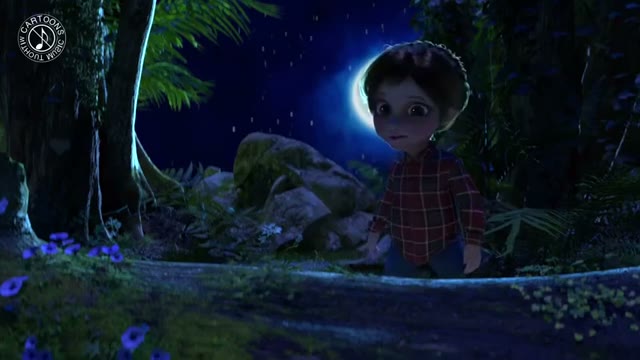
A forest after dark is an animation demonstration from the BachGround Examples collection, presented with its accompanying soundtrack. Use it as a listening exercise: consider the music’s energy, its relationship to the picture and the space it leaves for the scene.
04 / THE EDIT IS PART OF THE SCORE
Refine Your Soundtrack
An AI video soundtrack still needs your judgment. A promising piece of music may need a later entrance, a quieter passage or a softer ending. Review it in context before generating again.
Place the music
In Move mode, drag music clips along the timeline. Use Select to mark a time range; split, cut or remove material when the scene needs space. Check the music’s entrance and exit against the picture.
Balance the levels
Adjust the music and original-audio track volumes separately. If one passage needs a different level, show Volume automation and add breakpoints. Listen to quiet lines as well as louder moments.
Shape the transitions
In Move mode, drag the fade handles at the ends of music clips to adjust the fade in and fade out. A gradual entrance or exit can make the transition feel less abrupt.
Leave room for dialogue
Turn Ducking on to reduce music in response to the source audio. Open Ducking settings to adjust Intensity. Preview it with speech; automatic ducking is a starting point for the balance you want.
05 / OUT OF THE TIMELINE
Choose the Right Export
Open Export in Video Composer. All three options use your edited mix: track levels, automation, fades, mute, solo and optional ducking.
Soundtrack for further mixing
Download the edited music as WAV to work with it in your video editor or audio software. Original source audio is excluded.
A smaller audio file
Download the edited music as a 256 kbps MP3. Original source audio is excluded here, too.
Your video with its score
Download a scored video with the edited music and original source audio, subject to your track levels, mute and solo settings. Review those settings before exporting.
Exports are processed in your browser. Video export depends on browser and source-codec support; if it cannot complete, export WAV and finish in your video editor. Review the Terms before publishing or delivering generated work.
06 / A FEW USEFUL ANSWERS
Common Questions
Can AI create music based on video footage?
Yes. BachGround analyzes uploaded footage and uses that analysis, the content type and your optional brief to inform music generation. The result is a starting point to review against your creative intention; exact timing and musical outcomes can vary.
Can I adjust the generated soundtrack?
Yes. Video Composer lets you move and edit clips, change music and original-audio levels, add fades and volume automation, and adjust ducking. You can also request a retake or generate music in a supported region. New generations use your allowance or credits.
Can I use BachGround for short films and documentaries?
Short film and Documentary are both available content types. Start with a scene or sequence within the upload limit of 15 minutes and 512 MB. When making music for short films or dialogue-led documentaries, listen especially closely to pacing and speech clarity.
Can I export music separately from my video?
Yes. WAV and MP3 exports contain your edited soundtrack without the original source audio. To add generated music to a video in one download, choose the scored MP4 export, which includes source audio according to your mix settings.
Can I try BachGround before purchasing?
New accounts receive limited, one-time free starter usage with no credit card required. It is intended for a short first experiment, not a recurring free subscription. Analysis and generation draw on available usage. See current plans and credits for continued use.
THE NEXT SCENE IS YOURS
Give Your Video
Its Own Soundtrack
Bring a short clip, a musical idea, or just a sense of where the story should go.